User Feed
Note! The User Feed in Omnia is based on the SharePoint Newsfeed. Microsoft recommends using other techniques withing the Microsoft 365 suite for social capabilities.
Please read more here: https://techcommunity.microsoft.com/t5/Microsoft-SharePoint-Blog/In-June-2018-we-re-making-changes-to-the-native-social/ba-p/178430
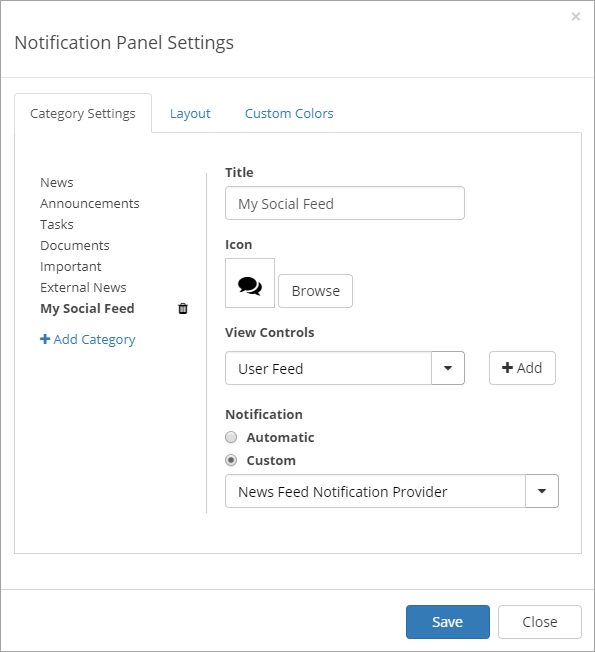
The Omnia User Feed can be added as a web part on a legacy page or as a block on a Quick Page. The User Feed can also be part of the Notification Panel.
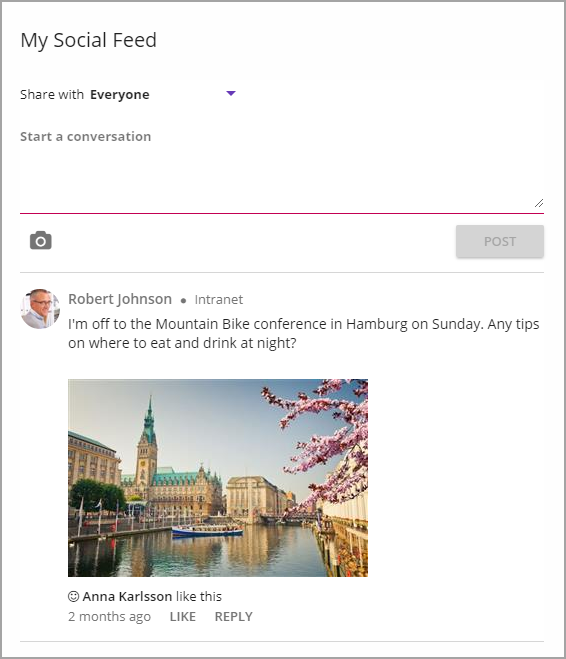
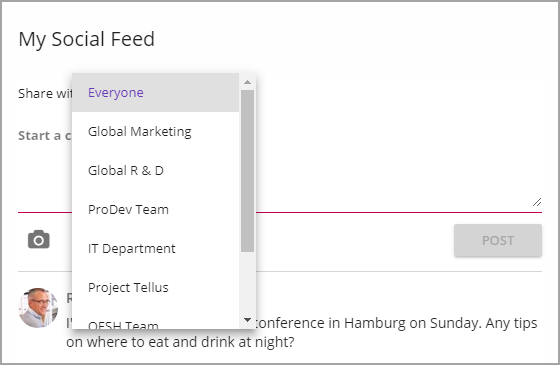
When posting a message here, users can select to make it available to everyone (if the option is activated, see below) or just to members of a certain team site. The list displays team sites the user is following.
User Feed settings
The control has the following settings:
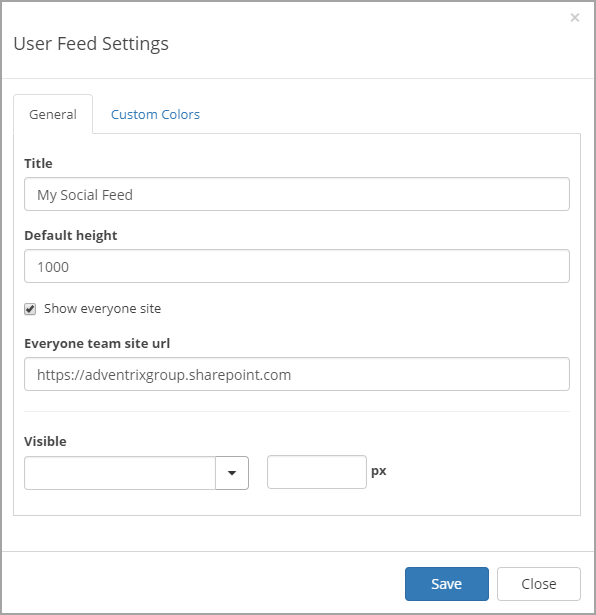
The General tab
- Title: You can edit the title displayed for the list.
- Default height: Set the default height in pixels. When there is more to display in the list, a “Show more” button is shown (see image at the top of the page).
- Show everyone site: If it should be possible to post a message to everyone, select this option.
- Everyone team site url: For posting to Everyone to work, a url to a site all users has access to, must be inserted here. See the set up instructions for more information.
- Visible: You can edit settings for when this control should be visible on a smaller screen. You can select “Always”, “Max width”, “Min width” and set the width in pixels.
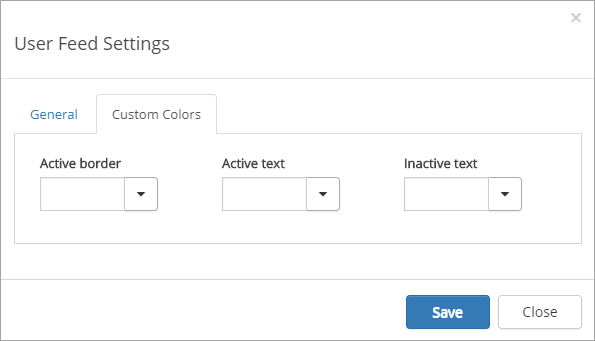
The Custom colors tab
You should primarily set colors through Theme colors in Omnia Admin (System/Settings/Default colors). If you still would like custom colors for the control, you can set them using this tab.
User feed in the notification panel
In the notification panel “Notification” should be set to “Custom” and “News Feed Notification Provider”.